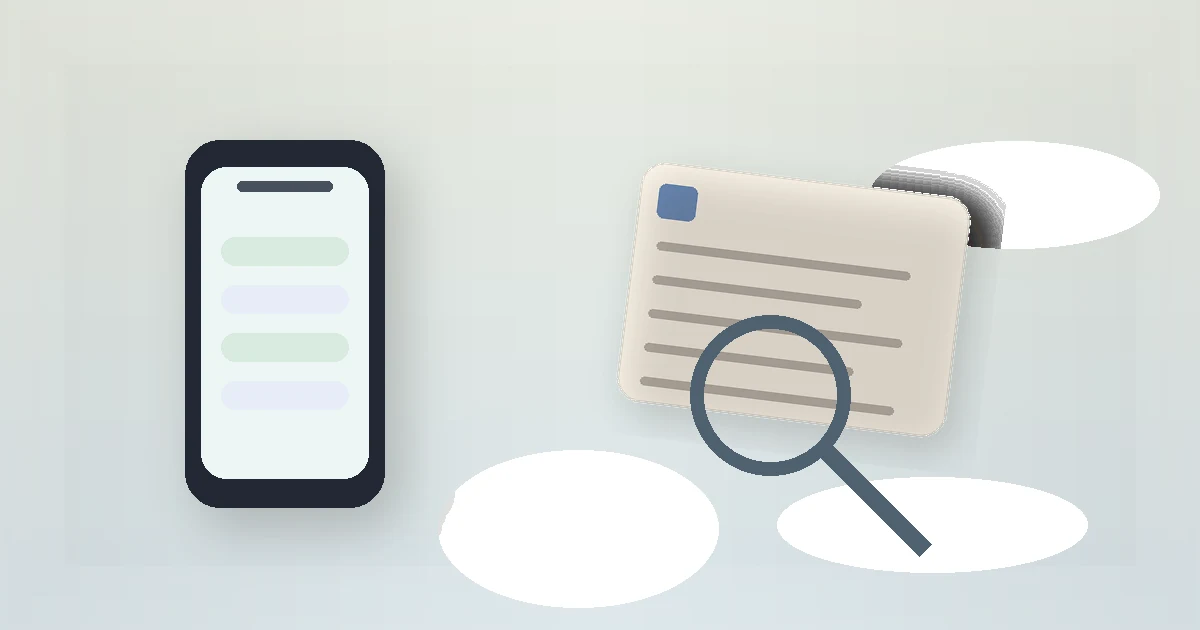
The Magnifier app uses the iPhone camera to enlarge printed text and nearby objects. It is useful for a care label, restaurant menu, appliance control, package instructions, or any small print that is awkward to bring close to the eyes. Unlike enlarging a photo later, Magnifier provides zoom, light, contrast, and freeze controls in one place.
It works best as a prepared tool. Open it and practice on a harmless label at home before trying to read something in a checkout line or during an appointment.
First improvement: Add light and steady the phone before using extreme zoom. More magnification also enlarges camera shake and blur.
Open Magnifier quickly
Find Magnifier in the App Library or use Spotlight search. If it was removed, download Apple's Magnifier app again from the App Store. Then choose a shortcut that is easy to remember:
- Add Magnifier to Control Center through its settings.
- Add the Magnifier widget to the Home Screen or Lock Screen where supported.
- Assign it to the Accessibility Shortcut, then triple-click the side button.
Use only the shortcut the owner is likely to repeat. Several launch methods can be more confusing than one familiar route.
Enlarge and focus on the text
Open Magnifier and point the rear camera at the item. Move the zoom slider gradually. Tap the area of text on screen to help the camera focus. If the image continually shifts, rest your forearms on a stable surface or move the item closer instead of pushing zoom to its limit.
Hold the camera square to the page. A steep angle makes one line sharp while another becomes blurred. For glossy packaging, tilt the item slightly until glare moves away from the words.
Use light, brightness, and color controls
Tap the flashlight control when the label is dim, but watch for glare on plastic or coated paper. Brightness and contrast controls can separate pale print from its background. Color filters may help when low contrast, not text size, is the main problem.
Change one control at a time. If a high-contrast filter makes colored warning symbols disappear, return to the normal view before making a decision based on the label.
Freeze a readable view
Tap the freeze-frame button when the words become clear. This captures the current view inside Magnifier so you can lower the phone and inspect the image without keeping the camera perfectly still. You can zoom the frozen view for closer reading.
A freeze frame is not automatically saved to Photos. Use the on-screen share or save options if a copy is needed and the information is appropriate to store. Close the frozen view when finished, especially after reading private mail, an identification card, or health information.
Use text detection carefully
Supported iPhones may offer Detection Mode, text detection, or Point and Speak. These tools can identify text and read it aloud. They can be helpful for a row of appliance buttons or a printed page, particularly when visual magnification alone is tiring.
Apple warns that detection features should not be relied on in circumstances where a person could be harmed, for navigation, or for emergency decisions. Recognition can misread a label or identify the wrong object. Verify medicine names, doses, expiry dates, allergen information, and safety instructions with the original print or another person.
Solve common viewing problems
| Problem | What to change first |
|---|---|
| The words shake | Use less zoom and steady the phone or item |
| The center is bright white | Turn off the flashlight and change the angle |
| The camera focuses behind the label | Tap directly on the text and move slightly closer |
| Print and background blend together | Increase contrast or try a color filter |
| A long paragraph is tiring | Freeze the frame, lower the phone, and inspect one section at a time |
Make the tool ready for daily life
Test the chosen shortcut with the phone locked and unlocked. Check that the owner knows how to leave Magnifier and return home. Clean the camera lens with a suitable soft cloth; a fingerprint can make fine print look permanently hazy.
Magnifier should reduce effort, not create certainty where the camera cannot provide it. For ordinary menus and labels, a quick enlarged view may be enough. For anything affecting health, money, identity, or physical safety, use a second reliable way to confirm the text.